All guidesWorkflow walkthrough

How to scan and save listings from a website

A visual walkthrough of scanning a public catalog, reviewing products and saving the selected listing batch.
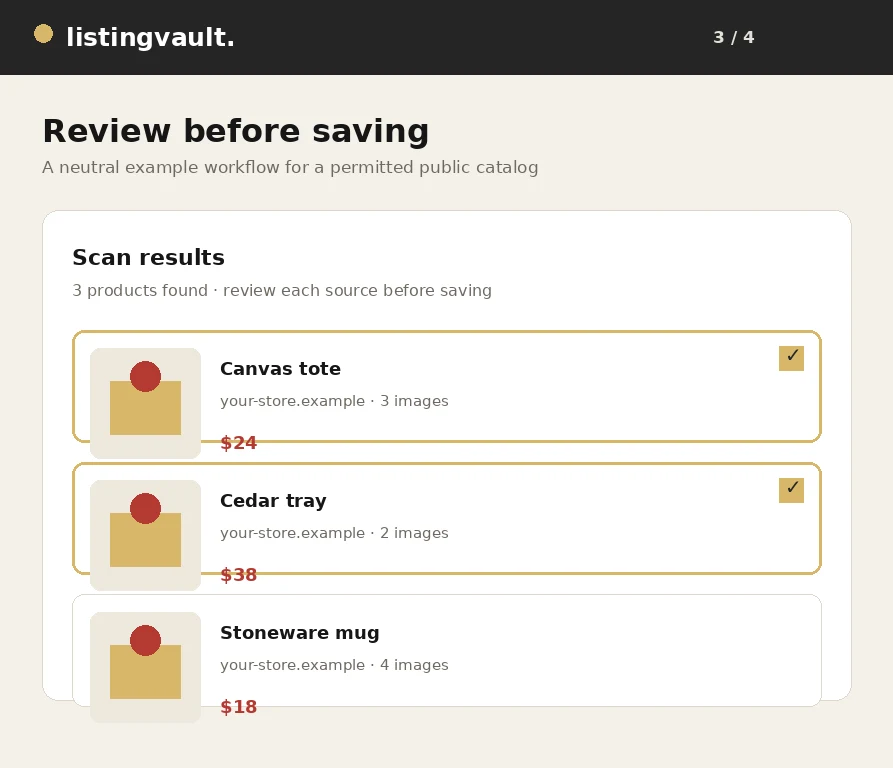
Listing Vault scan review showing product cards and selected listings

1. Open the import workspace

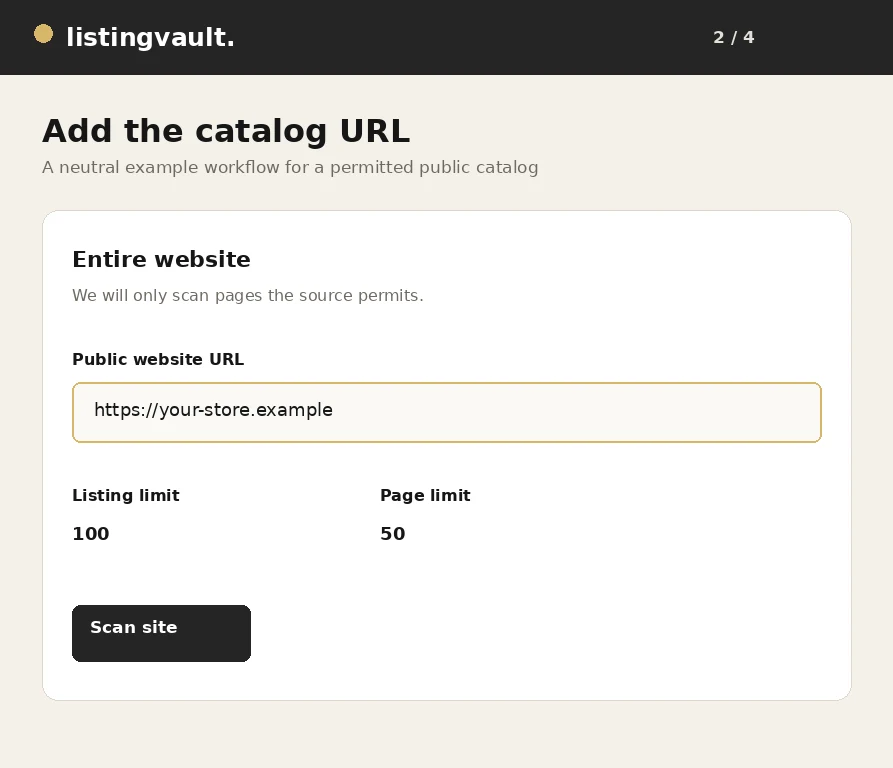
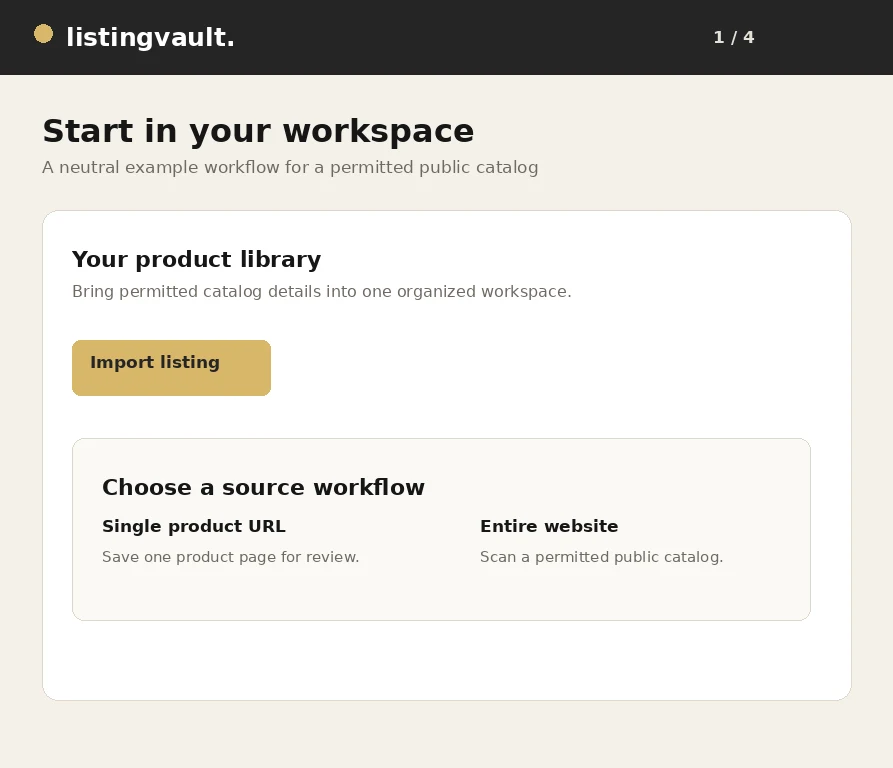
From the Listing Vault workspace, choose Import listing and switch to Entire website. Paste the public website URL you are permitted to scan into the website field. The workflow below uses a generic catalog demonstration and does not include credentials or private connection data.

2. Run a bounded catalog scan

Choose the listing and page limits that fit the job, then select Scan site. Listing Vault checks permitted catalog pages and sitemaps within those limits, respects robots.txt and reports progress while the scan runs. A scan is best-effort: a source can block requests, require authentication or expose only part of its catalog.

3. Review before saving

When the scan finishes, review the detected title, description, price, source link and image count on the product cards. Use Select all or select individual cards. The generic demonstration shows a batch selected before saving.

Only archive image files when you own them or have a license that covers the intended use. A rights choice records your declaration; it does not transfer copyright or override the source site's terms.

4. Save and verify the library

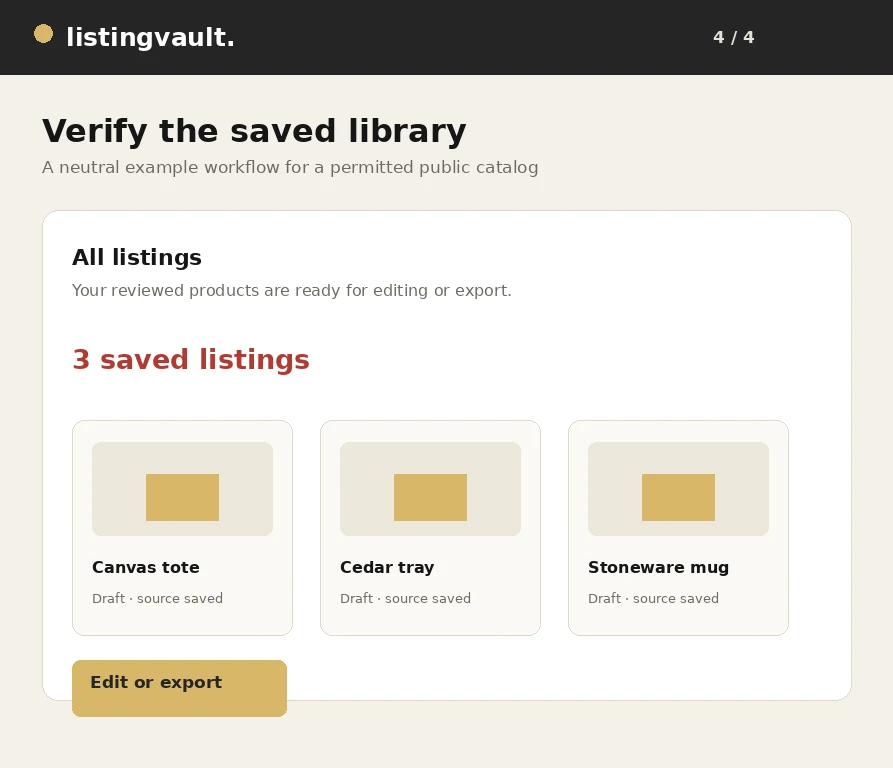
Choose Save selected to add the reviewed batch to your vault. After the save completes, open All listings and verify the count, source labels and draft status. The saved library is where you can continue the review without confusing a temporary scan result with a finished listing.

Saving a listing is preparation, not automatic publication. Edit the copy, review rights and use the available publishing or export controls only when the content is ready and permitted for your destination.

For a repeatable handoff, keep the source URL with each draft, compare a few saved cards against the original catalog and remove any image references you do not want to carry forward. If a scan is interrupted, use the saved-scan or resume controls rather than starting overlapping jobs. This keeps the review set understandable and helps prevent duplicate imports. Check the final saved count before sharing a package or starting a downstream publishing review.

First-party product guidance, not legal advice. Questions? listingvaultsupport@gmail.com.

Keep exploring

Original fictional terracotta vase from the Listing Vault sample catalog
Catalog organization

How to organize product listings without losing context

A practical workflow for turning saved product inspiration into a searchable, source-aware listing library.

Read the guide
Original fictional amber lamp from the Listing Vault sample catalog
Export workflow

How to bulk export listings with their image files

From selection to a portable ZIP: review your content rights and carry the actual retained image files with your listing text.

Read the guide
Original fictional ceramic mug from the Listing Vault sample catalog
Troubleshooting

Why images are missing from a listing ZIP—and what to check

Check storage, permissions, failed source requests and numbered package parts before retrying a large image export.

Read the guide
Listing Vault scan review showing product cards and selected listings
Workflow walkthrough

How to scan and save listings from a website

A visual walkthrough of scanning a public catalog, reviewing products and saving the selected listing batch.

Read the guide
Generic website URL entered in a Listing Vault import workflow
Import workflow

How to import product listings from any permitted website

A practical guide to importing product titles, descriptions and image references from a website you are permitted to scan.

Read the guide
Generic saved listing library ready for a bulk export
Export workflow

How to download product listings with images in bulk

A step-by-step export workflow for carrying selected listing text and eligible stored images into a complete portable package.

Read the guide
Generic scan results showing distinct product cards before saving
Import quality

How to avoid duplicate products when importing listings

Practical ways to keep a product library distinct when scanning pages, resuming jobs or importing the same source more than once.

Read the guide
Generic Listing Vault workspace for organizing product drafts
Catalog editing

How to organize product titles, descriptions and images

A practical editing system for making product titles, descriptions and image selections easier to review and export.

Read the guide
Generic saved product library prepared for a channel export
Channel preparation

How to prepare product listings for Pinterest

A rights-aware checklist for preparing listing text, images and destination URLs before saving products for Pinterest.

Read the guide
Generic scan review with product images awaiting rights review
Rights-aware workflow

How to review image rights before reusing product photos

A practical image review that separates technical access, ownership, licensing and channel permission before reuse.

Read the guide
Generic Listing Vault workspace for building a product catalog
Catalog building

How to create a product catalog from a website

A repeatable method for moving from a public source website to a useful product catalog without treating a scan as automatic publication.

Read the guide
Generic Listing Vault library showing organized seller drafts
Seller operations

Listing management for independent sellers: a practical guide

A practical operating system for independent sellers who need product research, listing drafts and export packages to stay understandable.

Read the guide